
Nativefier Download: Get the Original Package the Right Way
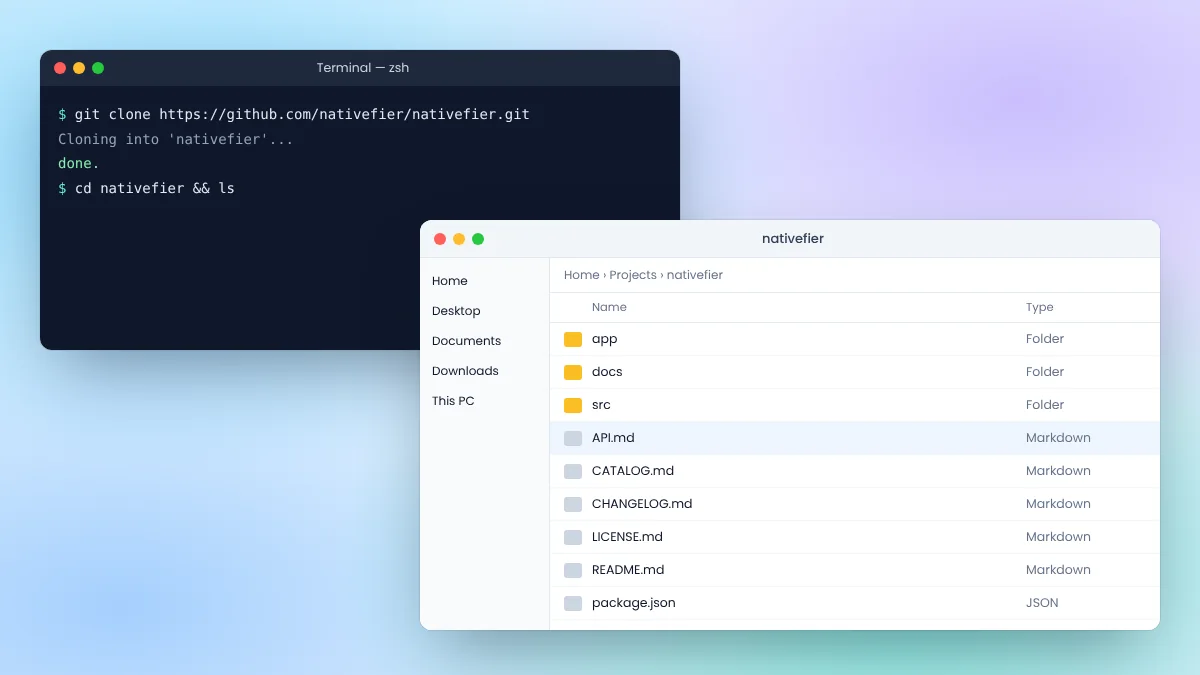
Nativefier download searches lead to many mirrors, bundles and repackaged installers, yet the tool itself has only two original homes: the nativefier/nativefier repository on GitHub and the nativefier package on the npm registry. Knowing how those two sources relate saves time and keeps your computer away from modified copies that add unwanted extras.
This page explains what you actually download, why there is no classic setup file, and how the archived status of the project changes the way you should treat every copy you find online.
What a Nativefier Download Actually Contains
Nativefier is a command-line program written in TypeScript and distributed as a Node.js package. Installing it gives you a nativefier command, not a desktop program with a window. When you run that command with a website address, it downloads an Electron runtime and produces a separate app folder for that website.
That two-stage design matters. The first download is small because it holds only the tool, while each app you build later carries its own copy of Electron. Disk usage grows with every generated app rather than with the tool itself.
npm Package Versus GitHub Repository
Most people never touch the source code. They install from npm, which fetches the published build of the same project that lives on GitHub. The repository is useful when you want to read the code, study the API documentation or build the tool yourself from source.
| Source | Best for | How you get it |
|---|---|---|
| npm registry | Everyday use on Windows, macOS and Linux | npm install -g nativefier |
| GitHub repository | Reading source, API.md and CATALOG.md | git clone or ZIP archive |
| Random download sites | Not recommended | Repackaged files with unknown changes |
Installing Nativefier from npm
The npm route is the one the project README describes. It needs Node.js and npm on your system first; the README lists Node.js 16.9 or newer and npm 7.10 or newer as the baseline. With those in place, a single global install adds the command to your terminal.
npm install -g nativefier
nativefier --help
The help output starts with a usage line that shows the target URL, an optional output directory and the extra options. Seeing that line confirms the download worked and that the command is reachable from your PATH.
Getting the Source Code from GitHub
Cloning the repository gives you the full project history, the src and app folders, and documentation files such as API.md, CATALOG.md and HACKING.md. HACKING.md explains how contributors built the tool locally, which is the path to follow if you want to run your own modified build.
git clone https://github.com/nativefier/nativefier.git
cd nativefier
Source checkouts are larger and need a build step before they produce a working command. For simply converting a website, the npm package is quicker and less error prone.
Why There Is No Official Setup.exe or DMG
Because Nativefier is a developer tool, the maintainers never shipped a point-and-click installer for the tool itself. Any site offering a "Nativefier setup.exe" or a ready-made DMG is distributing its own packaging, and you cannot easily tell what was added to it.
Treat unknown installers with caution. The safest Nativefier download is the npm package or the original GitHub repository, both of which you can inspect before running anything.
Archive Status and What It Means for Downloads
The original repository was archived on 29 September 2023 and is now read-only. The code remains available, and npm still serves the last published package, but no new fixes or releases are planned by the original team.
Archived does not mean deleted or broken. It means you are downloading software frozen at a point in time, so the Electron version it uses by default will age. That is worth keeping in mind for apps that handle logins or sensitive data.
- The code and documentation stay online for reference and forks.
- Open issues and pull requests are no longer handled.
- Default Electron versions will not move forward on their own.
- Community forks exist, but each should be judged on its own record.
Checking Your Download Before First Use
A few quick checks make sure you have the genuine tool. Run npm ls -g nativefier to confirm the package is installed globally, and run nativefier --help to see the expected usage text. On Windows, where nativefier shows which file answers the command.
If you cloned the repository, compare the remote address with git remote -v. It should point at github.com/nativefier/nativefier. Anything else means you are working with a fork, which may be fine, but should be a deliberate choice.
Disk Space and What Each Build Downloads
The npm package is light, but the first build triggers a second download: an Electron runtime for your platform and architecture. Nativefier caches that runtime, so later builds with the same Electron version start faster. Every generated app still contains its own copy, which is why a folder of wrapped sites can grow quickly.
Planning for this avoids surprises on laptops with small drives. Keep only the apps you actually use, and delete test builds once you have settled on the options you like.
- First build: downloads Electron and stores it in a local cache.
- Later builds: reuse the cached runtime when versions match.
- Each app folder: includes a complete Electron copy for its target.
Frequently Asked Questions
Yes. Nativefier is released under the MIT licence, and both the npm package and the GitHub source are available without charge.
No. Git is only needed to clone the source. Installing from npm needs Node.js and npm alone.
Yes. The repository is read-only but still reachable, and npm continues to serve the last published package.
The tool itself always runs through Node.js. Generated apps, however, can be built with the --portable option so they keep their data inside the app folder.
Conclusion
Nativefier download choices come down to two trustworthy sources: npm for everyday use and the original GitHub repository for source code and documentation. Skip repackaged installers, confirm the command with --help, and remember that the project is archived, so each app you build relies on an Electron version that will not update itself.
Once the command works, the installation walkthrough and the command options guide show how to turn your first website into a polished desktop app.