
Nativefier Update Guide: Upgrading Apps After the Archive
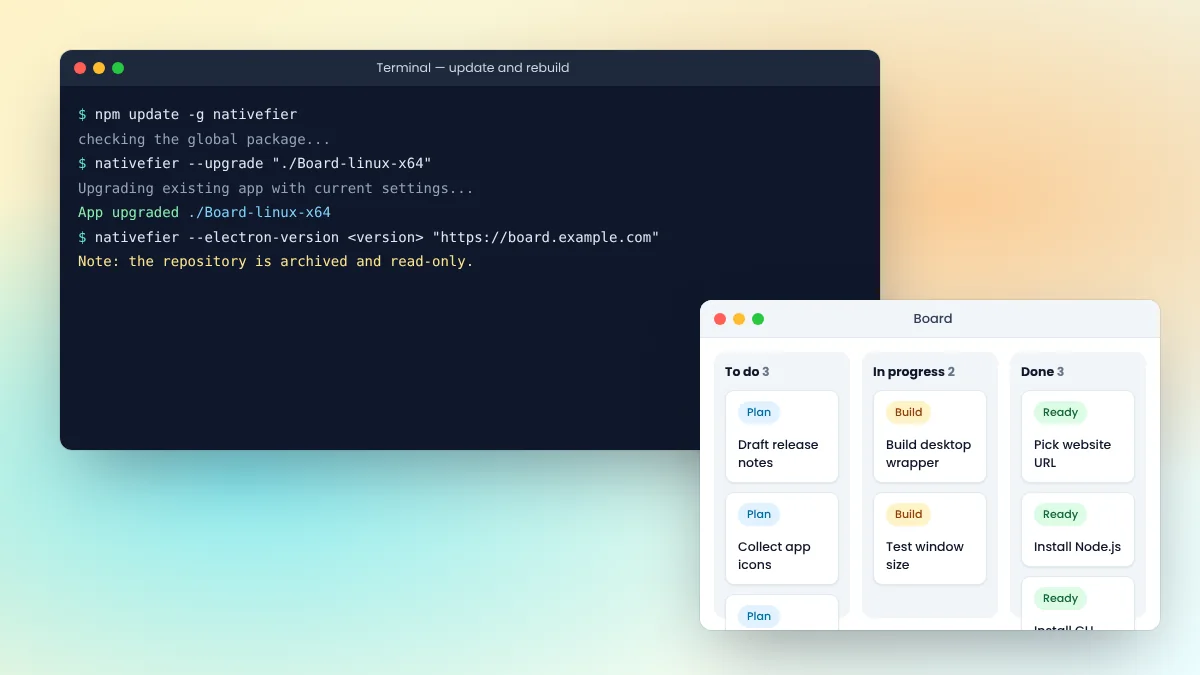
Nativefier update questions have changed since the project was archived. There are no new releases arriving from the original team, so updating now means two things: making sure you run the last published version of the tool, and refreshing the apps you already built so they carry a more current Electron runtime.
Understanding the difference between the tool and the apps it creates makes the whole process far less confusing.
Tool Updates Versus App Updates
The Nativefier command and each generated app are separate. Updating the npm package changes how future apps are built, but it never touches apps already sitting on your disk. Those apps keep the Electron version they were built with until you rebuild or upgrade them.
| What you update | How | Effect |
|---|---|---|
| The Nativefier tool | npm update -g nativefier | Future builds use the newest published release |
| An existing app | nativefier --upgrade <path> | Rebuilds the app with its saved settings |
| The Electron runtime | --electron-version <version> | Builds against a chosen Electron release |
| Website content | Nothing to do | The app loads the live site every time |
What the Archive Means for Updates
The nativefier/nativefier repository was archived on 29 September 2023 and is read-only. npm still serves the final published package, so npm update remains useful if your copy is older, but there will be no further releases from the original maintainers.
In practice, staying current now depends on rebuilding apps with newer Electron versions and keeping Node.js itself up to date on your machine.
Updating the Nativefier Package
Check which version you have, then update the global package. If the update reports nothing to do, you already run the latest published release.
npm ls -g nativefier
npm update -g nativefier
A clean reinstall with npm uninstall -g nativefier followed by npm install -g nativefier also works if npm seems confused by an old installation.
Upgrading an Existing App with --upgrade
Nativefier stores the options used for each app inside the app itself. The --upgrade option reads those settings and rebuilds the app in place with the current tool, so you do not need to remember the original command.
nativefier --upgrade "./Board-linux-x64"- Point the option at the app folder or, on macOS, the .app bundle.
- Back up the folder first in case the rebuild behaves differently.
- Add other options to the command to override saved settings.
- Close the app before upgrading so files are not in use.
Building with a Newer Electron Version
The --electron-version option, also available as -e, builds the app against a specific Electron release. Newer Electron versions bring newer Chromium security fixes, which is the main reason to use it after the archive.
nativefier --electron-version <version> "https://board.example.com"Compatibility Caveats
Nativefier was last tested against the Electron versions current at the time of its final releases. Much newer Electron versions may change APIs the wrapper relies on, so some features could stop working. Test each rebuilt app carefully before deleting the old one.
If a rebuilt app fails, return to the default Electron version and consider one of the maintained alternatives for that website.
Keeping Website Content Fresh
Website content never needs a Nativefier update. The app loads the live site whenever it starts, so new features from the service appear automatically. When a site looks outdated, the cache is usually responsible; rebuilding with --clear-cache clears it on every launch.
Clearing the cache does sign you out on some services, so keep the option for apps where fresh content matters more than staying logged in. For most wrapped sites, simply restarting the app is enough to load the newest version of the page.
Backing Up Before an Upgrade
An upgrade replaces files inside the app folder, so copy the folder first. If the rebuilt app misbehaves, you can return to the old copy straight away instead of reconstructing the original command from memory.
Note any injected CSS or JavaScript files and keep them alongside the backup. Upgrades reuse saved settings, but the files those settings point to must still exist where the app expects them.
Keeping Node.js Current
Node.js powers the tool during builds, so an outdated runtime can cause failures that look like Nativefier bugs. Updating to a current LTS release keeps npm working smoothly and meets the README minimum of Node.js 16.9 with plenty of margin.
After updating Node.js, reinstall global packages if your version manager keeps them per version. Running nativefier --help confirms the command still answers.
A Rebuild Routine That Stays Manageable
A light routine beats occasional emergency rebuilds. Pick a regular interval and work through your apps in one short session.
- Update Node.js and the global Nativefier package.
- Back up each app folder before upgrading.
- Run
--upgrade, then open and test every app. - Remove old backups once the new builds prove reliable.
Signs an App Needs Rebuilding
Websites change faster than wrappers. When a service shows warnings about an unsupported browser, features stop responding, or layouts break in ways the normal browser does not show, the bundled engine has probably fallen too far behind.
Rebuilding with the latest tool, then trying a newer Electron version if needed, resolves most of these symptoms. If nothing helps, the service may simply work better as a browser app.
- Unsupported browser messages appear inside the app.
- Sign-in pages loop or refuse to load.
- Video, audio or upload features stop working.
Frequently Asked Questions
No. Neither the tool nor generated apps update themselves. You update the npm package and rebuild apps manually.
App data such as cookies lives in your user profile, so it usually survives an upgrade unless the app was built as portable inside a replaced folder.
A newer release closes more security gaps, but compatibility with the archived wrapper is not guaranteed. Test before relying on it.
The original repository is archived and read-only, so no further releases are planned by the original team.
Conclusion
Nativefier update work now centres on your apps rather than the tool. Update the npm package once, use --upgrade to rebuild existing apps from their saved settings, and try --electron-version when you want a more current Chromium engine, testing carefully as you go.
For safety context read Is Nativefier Safe, and see the command options guide for flags worth adding during a rebuild.