
Nativefier Windows Guide: Icons, Shortcuts and Build Options
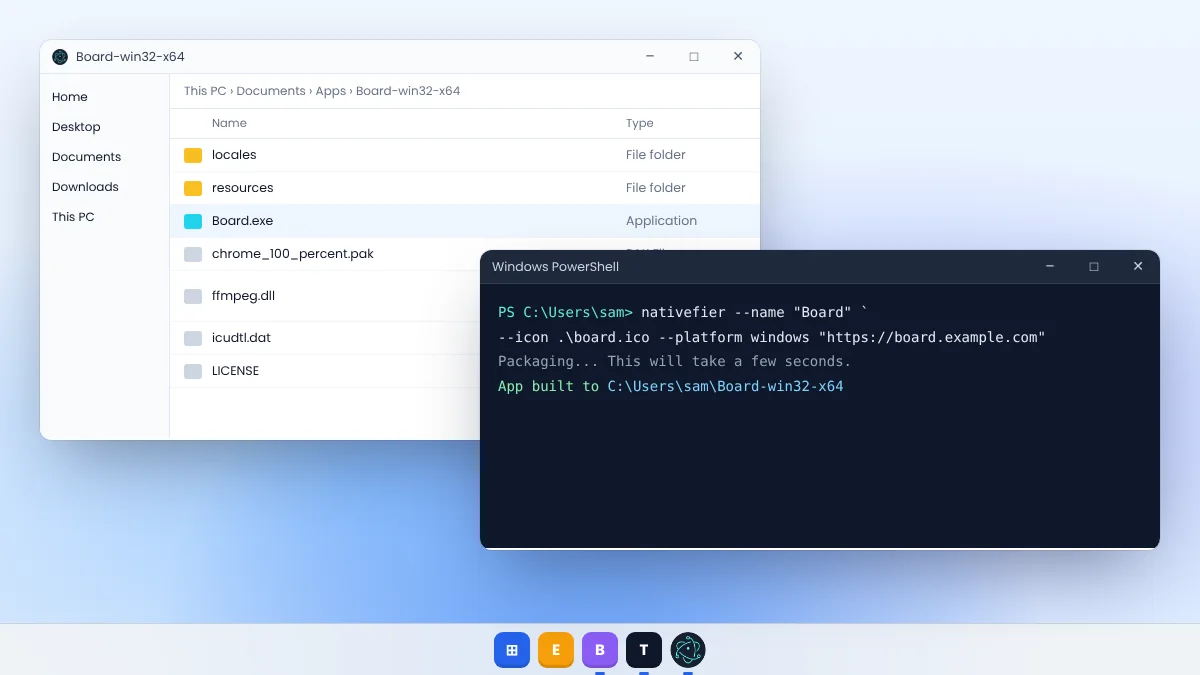
Nativefier Windows builds work well once you know a few platform habits: Windows expects .ico icons, generated apps arrive as folders rather than installers, and shortcuts are up to you. With those details handled, a wrapped website feels like any other program on the Start menu and taskbar.
This guide focuses on shaping the app itself. If you still need Node.js or the command, start with the Windows download and setup guide.
Understanding the win32 Output Folder
Every Windows build lands in a folder named after the app, the platform and the architecture, such as Board-win32-x64. The "win32" part is Electron naming and applies to 64-bit systems as well. Inside sits Board.exe along with Electron files like resources, locales and several DLLs.
The executable needs its neighbouring files, so move the entire folder rather than the .exe alone. A good home is a dedicated folder under your user profile or Program Files if you have administrator rights.
Building with a Custom .ico Icon
Windows uses multi-size .ico files for the window, taskbar and shortcuts. Passing one with --icon gives sharp results at every size. Nativefier can also try to fetch an icon automatically, but your own file gives predictable branding.
nativefier --name "Board" --icon .\board.ico --platform windows "https://board.example.com"- Include 16, 32, 48 and 256 pixel images in the .ico file.
- Keep artwork simple so it reads clearly at small sizes.
- Rebuild the app when you change the icon; Windows caches old images.
Creating Start Menu and Desktop Shortcuts
Nativefier produces a portable folder, not an installer, so it does not register Start menu entries. Right-click the executable, choose to create a shortcut, and place it in the Start menu programs folder, which you can open by typing shell:programs in the Run dialog.
Once the shortcut exists, search finds the app by name, and you can pin it to Start or the taskbar like any other program. Placing a second shortcut on the desktop is optional.
Window and Tray Options That Suit Windows
Several options make a wrapped site behave more like a native Windows tool. Combine them to match how you work, then rebuild when you want to try a different setup.
| Option | Effect on Windows |
|---|---|
--single-instance | Focuses the open window instead of starting a second copy |
--tray | Adds a notification area icon so the app can stay running |
--width / --height | Sets the starting window size in pixels |
--maximize | Opens the window maximised |
--always-on-top | Keeps the window above others, useful for small tools |
Portable Builds for USB Drives
The --portable option stores the app data, including cookies and cache, inside the app folder instead of your profile. That suits USB drives or shared machines, but remember that logins travel with the folder.
Building Windows Apps from Another System
You can target Windows from macOS or Linux with --platform windows. Setting the executable icon and metadata from a non-Windows system generally relies on Wine, so building on Windows itself is simpler. Choose the architecture with --arch, for example x64 for most PCs or arm64 for Windows on ARM devices.
Handling SmartScreen and Antivirus Prompts
Newly built executables are unsigned, so SmartScreen may show a warning the first time you run one that arrived from another computer. Apps you build locally usually open without fuss. If you share apps with colleagues, sharing the build command is often cleaner than sharing the files.
Never turn off security tools for an app you did not build yourself. Rebuild it from the original npm package instead.
Running Two Accounts Side by Side
Each app keeps its own data folder named after the app, so building the same website twice with different names gives you two separate sessions. That is handy for keeping a personal and a work account of the same service open at once without signing in and out.
nativefier --name "Mail Work" "https://mail.example.com"
nativefier --name "Mail Home" "https://mail.example.com"
Give each build a distinct icon as well, so the two windows are easy to tell apart on the taskbar.
Choosing a Tidy Home for Your Apps
A single folder such as %USERPROFILE%\Apps keeps every build in one predictable place. Shortcuts then point there, backups are simple, and removing an app means deleting one clearly named folder.
Avoid keeping app folders inside Downloads or temporary directories, since cleanup tools and storage settings may remove files from those locations automatically.
Updating Windows Apps Later
Windows apps never update their Electron runtime on their own. Rebuild them periodically with nativefier --upgrade pointed at the win32 folder, then test the result before deleting the previous copy. The update guide explains the process in detail.
Pinning and Grouping on the Taskbar
Once the app is running, right-click its taskbar button and choose to pin it. Windows then remembers the position, and the icon you supplied appears even when the app is closed, which makes wrapped sites feel like permanent tools.
If the pinned icon looks generic, unpin it, rebuild with the correct .ico file and pin again. Windows caches icons aggressively, so a fresh pin is often the quickest fix.
Frequently Asked Questions
No. It creates a folder with an executable. You can add shortcuts manually or wrap the folder with a separate installer tool if you need one.
Electron uses win32 as the platform name for all Windows builds. The architecture part of the name, such as x64, tells you the bitness.
Nativefier may attempt a conversion, but a proper .ico file gives the most reliable result for the taskbar and shortcuts.
Close the app, delete its folder and remove any shortcuts you created. App data lives in your profile unless the app was built as portable.
Conclusion
Nativefier Windows apps become first-class citizens once you give them a proper .ico icon, keep the whole win32 folder together and add your own Start menu shortcut. Options like single instance, tray mode and portable data then fine-tune how each wrapped website behaves on the desktop.
For more flags worth knowing, read the command options guide, and check the safety notes before wrapping sensitive accounts.