
Nativefier Windows Download: Setup, PATH and PowerShell Fixes
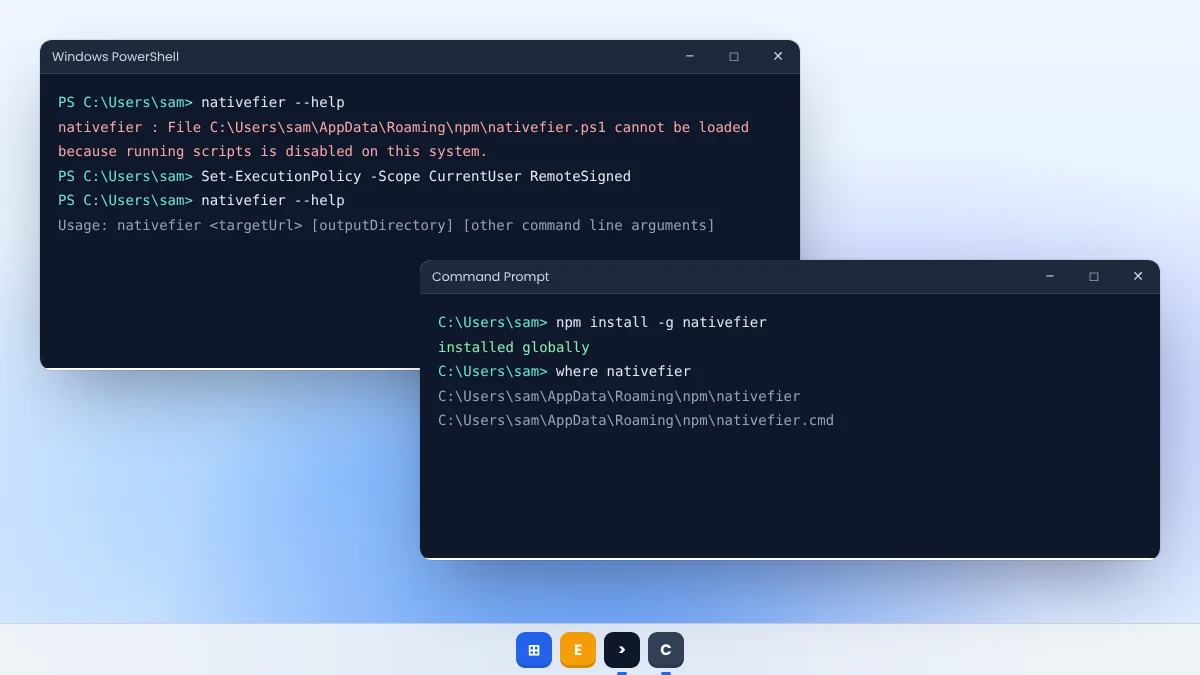
Nativefier Windows download steps differ from a typical program because there is no setup.exe for the tool. You install Node.js, then pull Nativefier from npm in Command Prompt or PowerShell. Most problems on Windows come from PATH settings and PowerShell script rules, and both are simple to fix once you recognise them.
Follow the sections in order and you will finish with a working command and a first desktop app on your PC.
Download Node.js for Windows
Get the Windows installer for the current long-term support release from nodejs.org. Keep the default components, especially the option that adds Node.js and npm to PATH. The Nativefier README lists Node.js 16.9 and npm 7.10 as minimums, which any current LTS release exceeds.
Close any terminal windows that were open during installation. New windows pick up the updated PATH; old ones do not, which causes many "command not found" reports.
Install Nativefier from npm
Open Command Prompt or PowerShell and run the global install. npm places the command files in %AppData%\npm, a folder the Node.js installer adds to your user PATH.
npm install -g nativefier
where nativefier
The where command should list files inside the AppData npm folder, including nativefier.cmd. If it lists nothing, PATH is the issue rather than the download.
Fixing the PowerShell Script Policy Error
Windows PowerShell blocks unsigned scripts by default on many systems. Because npm creates a nativefier.ps1 launcher, you may see a message saying the file cannot be loaded because running scripts is disabled on this system.
- Quick route: use Command Prompt, which runs
nativefier.cmdinstead. - Per-user fix: run
Set-ExecutionPolicy -Scope CurrentUser RemoteSigned. - Restricted PCs: ask your administrator, since policy may be managed centrally.
The RemoteSigned setting allows local scripts while still requiring downloaded scripts to be signed. It applies only to your account, so it does not change settings for other users.
Fixing PATH Problems
If neither terminal recognises the command, open System Properties, then Environment Variables, and check that your user Path contains the AppData npm folder. Running npm config get prefix shows the exact folder npm uses for global installs.
| Symptom | Likely cause | Fix |
|---|---|---|
| "not recognized as an internal or external command" | npm folder missing from PATH | Add the npm prefix folder to user Path |
| "running scripts is disabled" | PowerShell execution policy | Use cmd or set RemoteSigned for your user |
| "npm is not recognized" | Node.js not installed or stale terminal | Reinstall Node.js and open a new window |
| EPERM or access errors | Antivirus or locked files | Close terminals and retry the install |
Building Your First Windows App
With the command working, build an app from any website. Run the command from a folder where you want the output, such as Documents, so the result is easy to find.
cd %USERPROFILE%\Documents
nativefier --name "Board" "https://board.example.com"
Nativefier creates a folder like Board-win32-x64 containing Board.exe. Keep the folder together, then create a Start menu shortcut as described in the Nativefier Windows guide.
Uninstalling Cleanly
To remove the tool, run npm uninstall -g nativefier. Generated apps are separate folders, so delete them and their shortcuts separately. App data such as cookies lives under your AppData folder in a directory named after the app.
Deleting that data folder as well removes saved logins and cached pages, which is worth doing before passing the computer to someone else. Leaving it in place means a rebuilt app with the same name picks up where the old one stopped.
Checking Your Windows Version and Architecture
Open Settings, then System, then About to see the system type. Most PCs show a 64-bit x64 processor, which matches Nativefier defaults. Devices with ARM processors should add --arch arm64 when building so the app runs natively instead of through emulation.
Node.js also offers separate installers for x64 and ARM64. Choosing the matching one avoids slow builds and confusing compatibility messages.
Antivirus and Controlled Folder Access
Security software sometimes locks files while npm installs packages or while Nativefier writes an app folder. If an install fails with access errors, close other terminals, wait a moment and retry before changing any security settings.
Windows Controlled Folder Access can block writes to protected locations such as Documents. Building into a folder outside protected areas, or allowing Node.js through that feature, resolves the problem without lowering overall protection.
Choosing a Terminal on Windows
All three common Windows terminals run Nativefier, but each behaves slightly differently with scripts and line continuation.
- Command Prompt runs
nativefier.cmdwith no policy changes. - PowerShell may need the RemoteSigned policy for
nativefier.ps1. - Windows Terminal hosts either shell in a modern tabbed window.
- PowerShell uses a backtick, not a backslash, to continue long commands.
Keeping the Setup Healthy
A working install stays reliable with a little care. Update Node.js through the official installer when a new LTS release appears, then run npm update -g nativefier to confirm the package is current, even though the archived project publishes no new versions.
Avoid installing several copies of Node.js from different sources, such as the official installer alongside a package manager. Mixed installs leave PATH pointing at the wrong npm folder, which brings back the command not found error.
- One Node.js source per machine.
- Fresh terminal after every Node.js update.
- Quick
nativefier --helpcheck before building.
Frequently Asked Questions
No. The tool installs through npm. Only the apps you build come out as .exe files.
Generated apps use Electron, which supports current Windows releases. Test each app, since the archived project receives no further fixes.
Usually not. Node.js installation may ask for them, but the global npm install goes into your user AppData folder.
Yes. Windows Terminal hosts PowerShell or Command Prompt, so the same commands and fixes apply.
Conclusion
Nativefier Windows download success comes from a clean Node.js install, a fresh terminal and the global npm command. If PowerShell blocks the script, switch to Command Prompt or set RemoteSigned for your account, and if the command is missing, check that the npm folder sits on your PATH.
Next, polish your apps with icons and shortcuts in the Windows guide.